

Questions and answers about Smart home
Zigbee Outdoor Sensor 18012 Brightness Threshold
The Zigbee Outdoor Sensor 18012 is factory-set to a brightness threshold of 20 lux; this value can also be adjusted manually. To do this, briefly press the ‘learn’ button once when the brightness reaches the desired level. The button will flash once to confirm.
Zigbee motion sensor (item no. 50133/50150) Kelvin colour values
The Zigbee motion sensor (50133/50150) detects motion and brightness; it is not capable of detecting Kelvin colour values.
Zigbee to loxone
Zigbee devices cannot be connected to the loxone system. loxone uses its own technology (“Loxone Air”).
For Zigbee, a Zigbee-compatible gateway is required (Paulmann Gateway Smik, Amazon Echo, Philips Hue Bridge or a Zigbee remote control such as the Paulmann Gent 2).
Have your Smik app settings been lost during an update?
After updating the Smik app or the Gateway firmware, the system can simply continue to be used with the previous settings. System information such as paired Zigbee devices, created areas and scenes is stored in a separate database on the Gateway. The displays in the Smik app are based primarily on this Gateway data. In addition, certain connection data and settings are saved locally on the smartphone, which are not affected by a software update.
Zigbee Products: memory function
After the power is switched off, Zigbee products retain the set parameters, such as brightness, white tone or colour temperature. The switch status is not saved, so the light comes on after the power is switched off and then back on again. This setting cannot be changed.
Paulmann Motion Sensor Outdoor 50136 Light Sensor
The motion sensor outdoor can detect brightness levels in twilight conditions and reports these regularly to the Smik Gateway. Furthermore, the measured brightness of the light sensor determines whether motion detection is activated.
Smart Plug (50131) Memory function
Following an interruption to the power supply (power cut, etc.), the Smart Plug (50131) remains in the ‘off’ state.
Sun control in the Smik Gateway without a location
To make effective use of a routine control system based on sunrise or sunset, you need to specify your location. We do not currently offer any other option.
Switch ranges for the Paulmann Smart Switch (50134)
The Paulmann 50134 switch can be integrated into the following switch ranges:
Gira: Standard55, E2, Event, Esprit
Jung: A500, A plus
Merten: M-Smart, M-Arc, M-Plan
Berker: S1, B1, B3, B7 Glass
We do not guarantee long-term compatibility.
Languages and countries in the Smik app
The Smik app is available in German, English, French, Dutch and Spanish, and can be downloaded in all European countries.
Zigbee lamp in more rooms
In the Gateway app, you can assign a lamp to as many rooms as you like. This is also possible with Alexa and Google Assistant. With Google, we use a workaround as this is not supported natively – we create the rooms as an additional dummy device, which is then broken down into the individual elements within the Gateway.
Paulmann Motion Sensor Outdoor 50136 – permanently active
The motion sensor outdoor (50136) is battery-powered and would simply run out of power unnecessarily quickly if it were active all the time. The sensor wakes up regularly to measure the current level of twilight and transmit this data to the Smik Gateway. It is also activated when the level falls below the motion trigger threshold set by the user.
Smart Plug (50131) with voice commands
If the Paulmann Smart Plug (50131) is connected to a Zigbee gateway and that gateway supports voice control, the Paulmann Smart Plug – just like other lamps and lights – can be switched on and off using voice commands.
Smart Plug (50131) via Touchlink
The Paulmann Smart Plug (50131) can be controlled via Touchlink. To do this, you can use, for example, the Paulmann Gent (50067), Gent 2 (50140) or Basic Remote (50141) remote controls. More information on remote controls and Touchlink can be found on the product pages for the remote controls.
Multi-socket on the Smart Plug (50131)
It is possible to connect a multi-socket extension lead to the Smart Plug (50131), provided that the total load of the devices connected to the multi-socket extension lead does not exceed the plug’s maximum load. The relevant details can be found in the technical specifications area.
Amazon Echo device (Alexa) as a Zigbee network repeater
All devices that have been paired with the Smik Gateway are used as repeaters in the mesh network, provided the device supports this. As Amazon devices cannot be integrated into the network, this function is not available.
A Zigbee gateway is essential for using Zigbee products
Zigbee offers a feature called Touchlink. Touchlink is a Zigbee feature that enables devices in close proximity to connect directly to one another and communicate without needing to be on the same network or connected to a Gateway.
If Zigbee actuators are connected to controls via Touchlink, they can be controlled easily even without a Gateway, e.g. using a Paulmann Gent (item no. 50067), Gent 2 (item no. 50140), Basic Remote (item no. 50141) or the Paulmann Smart Switch (item no. 50134).
Light-up time for the Paulmann Plug (50131)
The Paulmann Plug (50131) can only switch lights on and off, but cannot perform dimming.
Paulmann is compatible with the Lola Smart range
The Lola Smart range uses WLAN and proprietary infrared signals to control the lights. With the smik Gateway and the Zigbee protocol, Paulmann is focusing on a stable, cross-brand solution.
Paulmann Gateway wall mounting
For wall mounting the Smik Gateway (50135), there is a recess on the rear panel to accommodate a screw head (keyhole mounting). The screw and wall plugs are not included.
Using the Smik Gateway System (50135) during a firmware update
Whilst the Smik gateway (50135) is restarting, the system will be unavailable for a few minutes. We therefore usually carry out firmware updates at night between 3 and 4 am Central European Time. During this time, you can, of course, continue to switch the lights on and off using your standard switches.
Zigbee accessories from Paulmann (remote controls 50067/50140, switch 50134, sensor 50136) on other gateways
Paulmann accessories are generally Zigbee 3.0-compatible; however, only our Smik Gateway 50135 has software specifically programmed for these components. For this reason, setting up the system with gateways from other manufacturers may prove somewhat complicated.
Twilight sensor 18012 with Zigbee 3.0 Smik gateways
The 18012 twilight and motion sensor is designed for use in a Zigbee system without a Gateway and connects directly to the Zigbee devices to be controlled via Zigbee Touchlink.For use in a Zigbee gateway system, the Paulmann motion sensor outdoor (item number 50136) is ideally suited. With the Paulmann smik gateway and the Smik app, this sensor can be optimally configured to suit your own needs.
Paulmann Smart Switch (50134) connected to Amazon Echo via Zigbee
The Paulmann Zigbee Smart Switch can be used in conjunction with an Amazon Echo that features a Zigbee interface. To do this, first pair the wall switch with an Amazon Echo. Then connect the wall switch to the devices you wish to control via Zigbee Touchlink.The lights linked to the wall switch and the Amazon Echo can then be controlled simultaneously via the Paulmann Zigbee Smart Switch, the Amazon Alexa app and Amazon Alexa voice control. The wall switch can be used to switch lights on, switch them off and perform dimming. For example, the wall switch can be paired with an Amazon Echo as follows:
Reset the wall switch if you have already used it. Open the Amazon Alexa app – go to the ‘Devices’ category and tap the ‘+’ icon. Select ‘Add device’ and then the ‘Switch’ category. Select ‘Other’ as the brand and then start the device search. Activate the wall switch’s pairing mode. Once pairing is complete, the Paulmann Zigbee Smart Switch will appear in the Amazon Alexa app under the ‘Switches’ category.
Once the Smart Switch is connected to the Echo, move the Smart Switch close to the target light and start the Touchlink pairing process as per the Smart Switch instructions.
We have none of the influence over software changes made by Amazon. We do not guarantee that the Paulmann Smart Switch will work with Amazon Echo devices.
Pressing the two lower buttons on the wall switch three times can trigger either a reset or connection mode. If the LED flashes briefly just three times as confirmation, a reset has been performed. If the LED flashes more frequently, the wall switch is attempting to connect.
Smart Plug (50131) with the Paulmann Bluetooth App
The Paulmann Smart Plug (50131) uses Zigbee as its wireless protocol and cannot be controlled via bluetooth. To control the Paulmann Smart Plug, you can use a remote control such as the Paulmann Gent (item no. 50067) or Gent 2 (item no. 50140), or a compatible Zigbee gateway (e.g. Smik, item no. 50135) with an app.
Zigbee Indoor Sensor (Item No. 50133) for outdoor use
Thanks to its IP54 rating, the 50133/50150 motion sensor can be used in sheltered outdoor areas. We recommend using the outdoor version (item no. 50136) instead.
Zigbee Indoor Sensor (Item No. 50133) without Gateway
The 50133 indoor sensor requires a Zigbee gateway for setup and configuration. The Paulmann Smik gateway, item number 50135, is best suited for this purpose.
Zigbee Indoor Sensor (item no. 50133) – only compatible with the Smik gateway?
The Zigbee twilight and motion sensor can also be used with third-party products, although Paulmann does not guarantee this. To ensure full functionality, it is recommended that you use the Paulmann Smik Gateway (50135).
Zigbee Smart Switch 50134 connected to the Smart Friends Box (item no. 50066)
The 50134 wall switch is generally Zigbee 3.0-compatible, but requires software to set up its full range of functions. As the Smart Friends Box is no longer supported by Paulmann, none of the special software has been installed on it.
Zigbee in-wall actuator with cross-wiring or two-way switching
For operating the Zigbee in-wall actuator (item no. 50139) with a cross-connection or two-way circuit, refer to Diagram A1 in the installation instructions. The wiring must be changed and extended by the electrician carrying out the installation in the direction of the switch (live wire L / neutral wire N).
Sensor-based routine: control only one area
A single routine can be used to control a large number of areas. In the ‘Zones and Scenes’ section, the routine can be expanded using the plus sign.
Paulmann motion sensor outdoor: different settings for different time periods
For motion routines linked to the motion sensor (50136/50133), it is possible to set up a second time period using the ‘+’ button on the system page. Together, the two time periods automatically add up to 24 hours and complement one another. Within the same routine, you can thus set up different areas and lighting actions depending on the time of day.
In the smik Gateway system (50135), a Zigbee light can be assigned to several areas
In the Smik app, a Zigbee light can be assigned to any number of areas and controlled accordingly. However, in some cases, a light’s firmware may limit the number of areas or groups it supports.
Paulmann motion sensor outdoor: just a single routine
There is no limit to the number of routines that can be created. When creating routines, users can select a sensor that has already been programmed and use it to simulate various scenarios as required. When creating motion routines, once the sensor has been selected, the system displays which two general sensor settings are currently stored in the accessories menu.
Use of the Gateway system during an update
During the update, the Smik Gateway (50135) restarts and is temporarily unavailable. The system cannot be controlled via smart devices for a few minutes. During this time, you can still switch the lights on and switch them off using the standard switches. Updates are usually carried out at night and are rarely noticed by users.
Zigbee in-wall actuator 50139: independent switching via a switch and a smart connection
The in-wall actuator (50139) is wired between the power supply and the switch, so that both control options can be used independently.
Integrating the Smik Gateway System (50135) into Alexa routines
To integrate the Smik system with Amazon Alexa, first create a Paulmann Smik account and then link it to your Alexa account. This will also allow you to connect third-party accessories to your Smik gateway system.
Using more smartphones with a Smik Gateway (50135)
The smik Gateway allows both Android and iOS smartphones to be connected simultaneously. The connected smartphones all have access to the configured smik lighting system. Changes made on one smartphone are also visible on all the others.
Running multiple Smik Gateways on a smartphone
Our software currently only allows a single Gateway to be operated per smartphone and app. It is not possible to increase capacity by adding another Smik Gateway.
More Smart Switch (50134) wall switches on the same area
To enable two-way switching in large rooms, the same light can be defined as the target for different switches in the Smik app. This type of switching is useful, for example, in corridors or on staircases.
Can Paulmann Zigbee products be used with Apple HomeKit via the Philips Hue Bridge?
Unfortunately, third-party products are not supported by Apple HomeKit on Gateways such as the Philips Hue Bridge 2. This is due to Apple’s certification process, not Philips’. These third-party products do not appear in HomeKit.
Pairing Paulmann Zigbee products with gateways from other manufacturers
Paulmann Zigbee lamps and lights are compatible with Zigbee 3.0 gateways from other manufacturers. It is also usually possible to control them using Zigbee remote controls from other manufacturers.
Third-party products on Paulmann Smik
Thanks to the Zigbee 3.0 Lightlink protocol, lamps and lights from other manufacturers can also be programmed into the smik gateway.
The Paulmann software is not compatible with the control of other sensors and switches.
Smart Plug (50131) in multi-socket sockets
The Paulmann Smart Plug has a very slim design, meaning that adjacent sockets can still be used without any problems.
Routines using Smart Plugs and fade durations for scenes
Smart Plugs generally only allow you to switch devices on and off. This means that gradual colour changes or dimming are not possible.
Paulmann lights do not respond to control commands
If lamps and lights do not respond, please check whether the Paulmann lights are within range of the Gateway or another Paulmann light. The range can be optimised by placing another light in the path between the Gateway and the device that is no longer within range, or by reducing the distance between the devices or to the Gateway.
It may also be helpful to optimise the position of the Gateway, for example by not placing it on the floor (a height of approx. 1 m is ideal).
Please note that range can also be significantly reduced by double glazing, metal objects, insulation films with a metal coating, metal underfloor heating systems, solid concrete or metal door frames and door leaves. Here, it is possible to position Paulmann products in such a way as to bypass these obstacles.
When rearranging the products, you should wait a short time until the Zigbee mesh network reconfigures itself and the connection paths to the Paulmann products are re-established (approx. 1–3 minutes).
Frequency of the Zigbee PWM dimmers for the MaxLED series
The Zigbee controllers for the MaxLED strips use pulse-width modulation at a frequency of 500 Hz.
Smik Gateway System (50135) Java log4j2 vulnerability
The log4j2 function is not used in the Paulmann Smik Gateway system.
Zigbee Indoor Sensor (Item No. 50133) – Batteries included
Two Mignon LR6 AA batteries are included with the 50133 sensor for operation.
smik app: multiple Smik Gateways (50135)
With the Smik app, only one Gateway can be used at a time.
Paulmann Zigbee lamps are compatible with the Paulmann Bluetooth App
Zigbee lamps and lights cannot be controlled using the Paulmann Bluetooth App. The wireless protocols are not compatible with one another.
Paulmann Zigbee products with the Philips Hue Bridge Pro
Thanks to their Zigbee 3.0 certification, all Paulmann Zigbee products can also be used with the new Philips Hue Bridge Pro gateway.
Compatibility of Paulmann smart products with Philips Hue
Thanks to the cross-manufacturer Zigbee 3.0 protocol, our smart Zigbee products can also be paired with third-party systems such as Philips Hue.
Smart Plug 50131 with dimming function
The Paulmann Smart Plug (50131) can switch connected devices on and off. Dimming is not supported.
Battery indicator update for the Paulmann Smart Switch (50134)
The battery level indicator on switch 50134 is read regularly after a button has been pressed and is then updated in the Smik app.
The Smik Gateway (50135) is flashing continuously
If both the network and internet LEDs on the Smik Gateway (50135) are flashing continuously, there is likely to be a fault with the connection. Here, check both ends of the network cable and the connection on the router via its software.
The Gateway takes a longer length of time to start up without an internet connection than with one
The Smik Gateway (50135) attempts to connect to the internet at the start. If an internet connection is available, this process is usually so quick that the user does not even notice it. If none of the internet connections are available, the Gateway keeps trying to connect and blocks further initialisation processes until it succeeds. After a certain amount of time, the process is skipped and the rest of the initialisation proceeds.
Zigbee remote control or Zigbee switch cannot connect to the light fitting via Touchlink
Make sure that the new light fitting has been reset and is therefore not assigned to any other Zigbee network.
Check that only the desired new light is within range.
If necessary, disconnect any other Zigbee lights – including those that have already been programmed – from the mains.
Background:
Zigbee Touchlink pairs with lights within its range. This happens at random; all lights within range are potentially detected and paired. If a paired light is activated, the remote control’s pairing attempt will fail, as the light is already part of a network. However, this also means that the Touchlink pairing process is complete and a new one would need to be started. This is general Zigbee behaviour.
Alexa voice command does not trigger
Please check the system for duplicate names. There may be duplicates (living room, ceiling light, etc.) as both individual lights and groups. Alexa always gives priority to its own entries (groups, rooms, individual actuators) over links to external products via a Gateway using a skill.
The Smart Switch 50134 no longer switches the programmed group
The Zigbee Smart Switch 50134 uses the existing mesh network to communicate with the programmed lights and lamps. If a device is currently unavailable, the data stream required for switching may be interrupted. We recommend the following procedure:
1. Under ‘Areas/Devices’ – ‘Lights’, check the list to see if any of the listed products have an exclamation mark instead of the light bulb icon on the right as their status.
If this is the case, switch that device off and then switch it on again.
2. If necessary, restart the Gateway once
3. If this does not work, delete the switch from the System, reset it and reprogram it
4. If that does not work, check the battery status of the wall switch and replace the batteries if necessary
Zigbee lights Gateway app unavailable
Your lights are not accessible via the Gateway app in the following cases:
1. Your lights have been switched off using a traditional light switch (no power supply).
2. Your lights or your smartphone are out of the system’s range.
3. Your Gateway or individual lights are carrying out an update. The system will be operational again after a few minutes.
4. There is a system error.
Paulmann lamps and lights with delayed switch-on
Delayed responses may indicate that the distance between Paulmann lamps and lights – either amongst themselves or to the Gateway – is too great. In this case, please reduce the distance between the products and/or the Gateway, or, for longer distances, insert another Paulmann product into the circuit.
Furthermore, the display of the switching process depends on the mobile device used. Depending on the manufacturer and version of the operating system (Google Android or Apple iOS), different switching or display behaviour may occur. In particular, slider commands are not implemented continuously; instead, only the set final value is transmitted.
LED indicators on the Paulmann Smik Gateway (50135)
On the Smik Gateway, the LED patterns indicate the following: LED 1 = network logo, LED 2 = globe
- both LEDs flash simultaneously = the Gateway is booting up and is not yet ready for use
- LED 1 flashes slowly = connection to the network is being established
- LED 1 is steady = network connection established
- Both LEDs on = Network and internet connection established
- Both LEDs flash 3 times = User settings successfully reset via the Gateway button. If both LEDs flash continuously, the network connection is likely down and the Gateway cannot start up!
LED indicators on the Smart Plug 50131
The Smart Plug 50131 uses its built-in LED to indicate the following:
The LED is lit continuously: The Smart Plug is supplying power to the connected device
The LED is off: The Smart Plug has cut off the power supply to the connected device.
The LED flashes at one-second intervals:
- The Smart Plug has been reset; the LED flashes for 10 seconds
- The Smart Plug is searching for a Zigbee network to connect to
‘Duration of the opening scene’ setting
For sensor routines, you can create a start scene and an end scene. Depending on the type of routine, the start scene is triggered when motion is detected or a brightness threshold is reached. The selected start scene remains active for the set duration, or the lighting remains adjusted accordingly. Once the selected duration has elapsed, the end scene is executed.
What does HCL stand for?
HCL stands for Human Centric Lighting – lighting that focuses on people, their well-being, performance and health. Modern LED lighting technology enables a range of light colours and brightness levels, thereby facilitating smart lighting control that can automatically adapt the quality of light to the body’s natural circadian rhythm. This is because light has not only a visual effect, but also an emotional and biological one. Depending on the days of the week and season, the HCL control generates the right light at the right time, either mirroring the natural cycle of sunlight or deviating from it, depending on personal preferences.
Resetting the Smik Gateway system (50135)
Both options for resetting the Smik Gateway (50135) relate to the removal of settings and activities carried out by the user.As is standard practice in the industry, the device is not reset to its full factory settings; in other words, the current operating system and the current version of the application software are retained. This is solely because it is not possible to guarantee the compatibility of all elements with software versions that are, in some cases, several years old.
Pairing the Smart Switch 50134/50137 with the Smik Gateway (50135)
If several components plus switches are to be integrated into the Smik Gateway, it is advisable to pair the switches first. Thanks to the mesh network, the connection will then be routed directly rather than via other actuators.
Why are there four default scenes in the Smik app?
The scenes have been set up by Paulmann and activate lighting atmospheres for different phases of your day-night cycle. ‘Wake-up’, ‘Relax’, ‘Focus’ and ‘Night light’ differ in their brightness and white tones. Lamps that cannot reproduce these scenes are automatically switched off so as not to disrupt the atmosphere.
Differences between Zigbee remote controls
[Image] 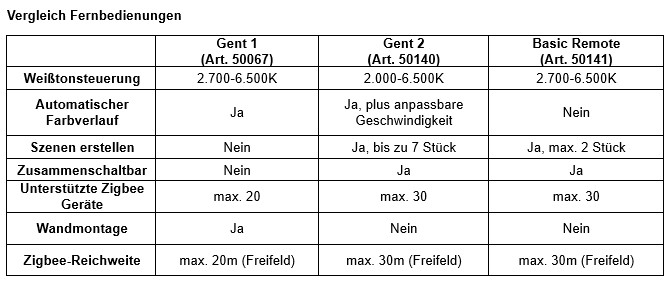
Ideal installation height for the Paulmann motion sensor outdoor (50136)
Optimal sensor detection is achieved when the wall height is between 0.8 and 1.6 metres.
What is Touchlink?
Touchlink refers to the pairing function of smart lights and lamps at a very short distance (30 cm or less) using a control unit (remote control, switch).
Prerequisites for using routines based on sunrise or sunset
To be able to use routines based on sunrise and sunset times, you first need a software version that supports this feature. Your iOS or Android Smik app must be at least version 1.1.0 (see the left-hand side menu at the bottom of the Smik app), and your Gateway must have at least software version 1.0.871 (see Gateway settings in the Smik app).
In addition, to use routine control based on sunrise or sunset, your Gateway’s location must be determined. To determine the Gateway’s location, we use your mobile phone’s GPS signal. To do this, you must allow the Smik app to access your mobile phone’s location.
What is Zigbee?
Zigbee is a wireless communication standard characterised by low data traffic and low energy consumption. The protocol is used in home automation for sensors, blinds, control systems and lighting technology. If a mesh master is used (e.g. our Smik Gateway 50135), every connected device also acts as a repeater.
Thanks to this cross-manufacturer standard, devices from different brands can be combined within a single network.
Paulmann products use the latest Zigbee 3.0 Lightlink protocol.
Installing the Paulmann Smik app on an iPhone
To ensure the smik app works properly on an iPhone, all terms of use must be accepted and access to local networks must be permitted; otherwise, communication between the smik Gateway and the iPhone will not be possible. If the connection does not work the first time, restarting the device or switching to and from flight mode may help.
Resetting the Plug & Shine Zigbee Spot 94849 or putting it into pairing mode
To reset the Plug & Shine Zigbee Spot Shira (94849), switch the power supply off and on again five times. When doing so, ensure that the power is off for 5 seconds and on for 2 seconds each time. The spotlight will then flash for approximately 10 seconds before switching to a warm white colour of 2000K. You can now carry out the pairing process using the remote control or the smart home system.
iPhone won’t connect to the Smik Gateway (50135)
If an iPhone does not connect to the Smik Gateway, it may be because the app does not have permission to access the local network:
1. Open Settings
2. Select the Smik app
3. Activate the ‘Local Network’ switch
4. Scan the QR code from the Gateway again in the Smik app
The Smik Gateway (50135) cannot be reached
If you cannot connect to the Smik Gateway, please ensure that the app is up to date and that your smartphone and the Smik Gateway are on the same network. Sometimes, switching to a different LAN port on your internet router can also help.
Remote control of the Smik Gateway system (50135) is not working
If the remote control for the Smik Gateway (50135) is not working, please check the following points first:
Have you already created a Paulmann account in the Smik app and do you have a login?
Once you have created your Paulmann account, is remote control enabled in the Gateway settings?
Were you connected to the same network as your Gateway with your smartphone when you activated or attempted to activate remote control?
Have you restarted the Smik app yet?
Have you logged in again with your Paulmann account and activated the remote control?
If you’re still having trouble, please feel free to contact our Service Team, for example via app-support@paulmann.de. You’re welcome to ask the following questions straight away:
Does a banner with an error message appear in the Smik app?
If you’re using a voice assistant with the Smik system, is it working properly?
What is your Paulmann account name?
What is the serial number/mac address of your Gateway? You’ll find this information on the sticker on the underside of your Gateway.
Sensor routines are not triggering
If the sensor routines do not trigger, you should first check whether the routine is still active.
In the Smik app, you can check the sensor’s battery status under Areas > Devices > Accessories.
There may also be an interruption in the mesh network. In the menu under Areas-Devices > Lights, all lights that are not accessible are marked with a red exclamation mark. These devices should be reset to their original programmed state by switching the power off and on again. The sensor should now reconnect and trigger the routines again.
Unable to access the Smik Gateway (50135)?
If you are unable to access the Smik gateway (50135), the update service may not have successfully installed the latest firmware version on the gateway. Please contact app-support@paulmann.de with the mac address of your existing Smik Box (located on the underside of the device, directly below the QR code).
None of the cloud connections to my Smik Gateway system (50135) when I’m out and about
If you are unable to establish a cloud connection to the Smik gateway whilst on the move, please check whether your smartphone’s mobile data connection is active and whether you have a strong signal. If this is the case, restart the Smik app and check the connection status again in the Gateway settings.
Control via routines based on sunrise and sunset
For the two routines, ‘Target Time’ and ‘Time Period’, you can choose a specific time, sunrise or sunset as the trigger for an action. With a ‘Time Period’ routine, it is possible to combine the triggers; for example, you can set a light to switch on automatically at sunset and switch off at 6 am the following morning.
If you wish, a routine can be triggered slightly before or after sunrise or sunset.
Interference between WLAN and Zigbee signals
To avoid interference in the Zigbee network, the WLAN signal should be set to 20 MHz (as 40 MHz causes additional interference) and to a fixed channel: 1, 6 or 11.
Paulmann Motion Sensor Outdoor 50136 with Smik Gateway 50135
When supplied, the 50136 sensor is reset and can be paired directly with the Smik gateway. If the sensor has already been in use with a Zigbee gateway, it must first be reset so that it can be detected and paired by a new gateway. Zigbee products can only be part of one Zigbee network at any time.
LED on the Paulmann Smart Switch (50134)
The LED on the Paulmann Smart Switch indicates the following:
Three short flashes after pressing the two lower buttons – the switch has been reset.
Touchlink connection without a Gateway:
LED remains lit for three seconds, followed by six flashes – the switch and Zigbee device have successfully connected or the connection has been disconnected.
Connection via a gateway:
Intermittent flashing for up to 20 seconds after pressing the two lower buttons – gateway searching. A brief flash following a gateway search – the switch and gateway have connected.
Connections on the Paulmann Gateway Smik (50135)
The Paulmann Smik Gateway is equipped with the following ports: Power is supplied via USB-C, whilst connection to the home network and the internet is via LAN/Ethernet cables (both included in the pack).
Types of sensor-based routines using the Paulmann motion sensor outdoor (50136)
With the Paulmann motion sensor outdoor, you can set up routines using various triggers: motion routines and brightness routines
Settings for the Paulmann motion sensor outdoor (50136)
You can adjust the following settings within the sensor itself:- Brightness threshold for motion detection- Motion sensitivityMotion detection is only activated when the brightness falls below the selected threshold. There are four selectable thresholds, ranging from very low to high.The motion sensitivity determines the distance at which the sensor detects movement. There are three settings available, ranging from low to high. These two general settings apply to all motion routines linked to the same sensor, as they are stored on the sensor itself.In addition to motion routines, it is also possible to create brightness-only routines. These process the brightness values supplied by the selected sensor. The activation thresholds can be freely selected for each of these created routines.
Which devices can be used to expand a Zigbee mesh network?
Devices used to extend the mesh network include products such as lamps, controllers and Smart Plugs. Products such as switches or sensors, on the other hand, are Zigbee endpoints and do not relay Zigbee signals to other devices.
Which devices can be connected to the Smart Plug (50131)?
The Paulmann Smart Plug (50131) is designed for use with non-smart lighting products. It is technically possible to use it in conjunction with other types of devices, provided they fall within the supported load capacity. However, we do not provide any warranty for such use.
What light levels does the Zigbee Indoor Sensor (item no. 50133) detect?
The Indoor Sensor 50133 measures lux values ranging from 5 (dark) to 2,000 (bright as day).
Which lighting actions can I select for sensor-based routines?
The following options are available to you:- Default commands: All off, Do nothing, Flash, All on- Default scenes: Day, Relax, Focus, Night- Custom scenes
Zigbee products have a long range
The range between two Zigbee products is 50 metres in open space by default and may vary depending on the type of device. Thanks to the mesh capability (each product acts as both a receiver and a transmitter), the system’s range increases from product to product, meaning that even greater distances can be bridged.
What is the range of the Paulmann Zigbee gateway Smik (50135)?
Our Zigbee gateway, Smik, has a maximum radio range of 100 metres in open space with no obstacles.
However, when it sends a command, the device to be controlled (actuator) must also be able to send a response within this radio range (bidirectional connection).
As none of the data necessary to establish a stable bidirectional connection is available, the range specifications of the actuator must also be checked and, if necessary, additional products installed along the route to act as repeaters or mesh extensions.
Voice assistants with the Smik Gateway
It is currently possible to connect the voice assistants Amazon Alexa or Google Assistant to our System.
Voice commands for the Paulmann Alexa Skill / Google Action
The following voice commands are supported by the Paulmann Alexa Skill:
• Switching individual lights or areas on or off -> Switch on the TV light, Switch off the bedroom light -> Switch off all the lights
• Switching on scenes -> Switch on the ‘Goodnight’ scene, Switch on the ‘Film’ scene
• Adjusting brightness (for compatible lights and areas) -> Switch TV light to 30%, Dimm living room to 10%, Increase TV light by 10%
• Adjusting colours and white tones (for compatible lights and areas) -> Switch living room to red, switch TV light to warm white, switch living room to cool white
Commands are only executed for those devices that support them; for example, a Tunanble White lamp would not respond to the command “Living room red”.
An up-to-date list can be found online on the advice pages and the Skill/Action pages.At present, it is not possible to issue combined commands on Alexa, i.e.:
This works: “Switch on the living room”
This does not work: “Set the living room to 50%” if the living room is currently off, as this is a switch-on command combined with a dimming command
System requirements for the Smik app
The Paulmann Smik app runs on iPhones running iOS 17 or later and on Android smartphones running version 11 or later.
Smik Wireless Standard Gateway
The Smik Gateway uses the Zigbee 3.0 Lightlink protocol and transmits on 2.4 GHz (channel 11).
Detection range of the Paulmann motion sensor outdoor 50136
The motion sensor outdoor (50136) detects light levels during twilight, i.e. during the transition from day to night.
Zigbee gateway for use with the Paulmann motion sensor outdoor 50136
The Paulmann motion sensor outdoor can only be customised using the Paulmann Smik Gateway and the Paulmann Smik app. This allows you to set your own brightness threshold for motion detection, as well as routines to trigger your own custom scenes at specific times. Integration as a trigger unit with other Zigbee 3.0 gateways may be possible using the sensor’s default settings, but this is not guaranteed by Paulmann.
Smik Gateway accessories
Paulmann offers the following products, which can be linked as accessories in the Smik app:
Basic Remote Control (Item No. 50141)
gent 1 remote control (Item No. 50067)
gent 2 remote control (Item No. 50140)
Smart Switch (Item no. 50134)
Motion Sensor (Item no. 50133)
Motion sensor outdoor (Item no. 50136)
Analysis of Smik usage data
When you create a Smik user account, personal data is stored. This data is held on a secure server in Germany. No analysis of data at a personal level takes place. You can find further information in our privacy policy.
Status report on the Smik System Gateway for routine control based on sunrise and sunset times
To determine the Gateway location, we use your mobile phone’s GPS signal. To do this, you’ll need to enable location services on your mobile phone for the Smik app. Your mobile phone’s location will then be displayed on a map, which you’ll need to confirm. It is not currently possible to select a location manually.
Paulmann motion sensor outdoor 50136: Connection mode
Press the Learn button for at least five seconds to activate the connection mode on the motion sensor outdoor (50136). Once the Smik Gateway has successfully added the sensor via the relevant accessory search, the LED will light up for three seconds.
Create a routine in the Smik app
Select the ‘Automation’ menu item to create routines for your Zigbee lights. Depending on the type of routine you choose, you can customise them, for example by selecting specific days, times, scenes, fade-in times and areas. Routines you have created are listed at the top level in the ‘Automation’ area. Deactivated routines are displayed in grey.
Creating scenes in the Smik app
In just a few steps, you can create a scene for an area or room in the Smik app to activate a lighting scenario for all the lamps and lights available there. The copy function makes it easy to save different colours or brightness settings for immediate use.
White bar in the Smik app
On the white balance settings bar, lights are represented relative to your colour perception. This means that different lights may actually produce different shades of white, even though their product symbols are positioned at the same point on the white balance bar.
Reset Zigbee device
The following steps are required to reset a Zigbee device:
1. Switch on the device
2. Switch the power supply off and on again five times in succession, leaving it off for 2–3 seconds and on for 1–2 seconds each time
3. The light will now flash (pulse) for 10 seconds and switch to 100% brightness (warm or cool white)
4. If the confirmation flash is not visible, the process was not successful; please repeat the reset, ideally whilst the device is searching
Size: Paulmann Gateway Smik
The dimensions of the Paulmann Smik Gateway are approximately 72 mm x 84 mm x 26 mm (W x H x D).
Dimensions of the puric pane pendant light with canopy (Item No. 79773)
The canopy of the puric pane pendant light (79773) has the following dimensions:
Length 422 mm / Width 70 mm / Height 38 mm
The centre-to-centre distance between the mounting holes is 300 mm.
Motion Detection: Paulmann motion sensor outdoor 50136
If the motion sensor outdoor (50136) detects movement in accordance with the settings, this is immediately reported to the Smik gateway. Provided that further movements are detected within a subsequent 30-second period, none of the movement notifications are sent to the Smik gateway.
Once 30 seconds have elapsed without any new movement being detected, the sensor reports to the Smik Gateway that the movement has ceased and, from that time onwards, would detect any new movement and transmit it to the Smik Gateway to trigger the routine again.
Reset Paulmann Gateway Smik (50135)
There are two different ways to reset the Smik Gateway (50135):
1. Clean Up via the app:
Scenes, areas and routines are deleted. Devices, cloud connections and app tokens are retained.
- Navigate through the menu to ‘Settings’ -> ‘Gateway’ and select ‘Delete user settings’ at the very bottom
2. Reset via the button on the device casing:
All user data, such as databases and configurations, will be deleted. All user configurations and connections are deleted; paired Zigbee devices are removed from the system.
- Press 5 times within 10 seconds
Before performing the reset, the user should manually disconnect the app from the Gateway in the app’s Gateway settings.
The reset devices will flash to confirm the reset, in accordance with their respective manufacturers’ specifications, and can be paired again.
Removing the switch module from the frame of the Paulmann Smart Switch (50134)
The Smart Switch can be removed from the frame as follows:
If the switch is not fixed in place:
Turn the switch round to face you and press firmly on the inner part to push it forwards. The frame’s locking mechanisms will then release.
If the switch is fixed to the wall:
Use a sturdy, narrow object to pry the switch away from the wall by inserting it between the base plate and the frame.
Delete Paulmann Gateway account
At present, you can only delete your Paulmann account manually. To do so, please send an email to: app-support@paulmann.de
Connecting the Paulmann Smart Switch (50134) to a Zigbee gateway
To pair the Paulmann Smart Switch with a Zigbee gateway, follow these steps: Use the two lower buttons on the switch to activate pairing mode by pressing them briefly three times. The switch LED will then flash at regular intervals for up to 20 seconds. At the same time, pairing mode should also be initiated via the Gateway’s app. To confirm a connection, the switch’s LED will flash rapidly several times. If, after pressing the two switch buttons three times, the LED only flashes briefly three times, the switch has not yet been reset. You will then need to press the buttons again.
Reset the Paulmann Smart Switch (50134)
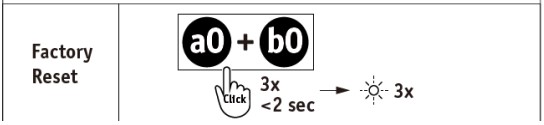
To reset the Paulmann Smart Switch (50134), press the two lower buttons simultaneously three times. To confirm, the switch will light up briefly three times. If the LED flashes for longer intervals, a reset was not necessary and pairing mode for connecting to a Gateway has already been activated.
Reset Smart Plug (Item No. 50131)
To reset the device, press and hold the switch on the Paulmann Smart Plug (50131) for five seconds. Once the reset is complete, the LED will flash for about 10 seconds.
Connect the Smart Plug Outdoor (50138) with remote control or wall switch to your smart home
The Zigbee module in the Smart Plug Outdoor (50138) cannot be paired via Touchlink; this device always requires a Gateway system that supports the Zigbee standard.
Reset Zigbee Outdoor Sensor (Item No. 18012)
To reset the Zigbee Outdoor Sensor (18012), press and hold the ‘Reset’ button for at least 5 seconds. It will then flash 5 times.
Smik Change the display order of the areas in the dashboard
You can reorder the display of the areas using drag and drop in the overview list of area settings: Open the side menu – Areas/Devices – Areas
Reset Basic Remote Control (50141)
To reset the Basic Remote Control (50141), follow these steps:
1. Press the On/Off button and the ‘+’ button simultaneously three times
2. The status LED will flash three times to confirm
Activate remote control of my Smik Gateway system (50135)
To activate remote control of the Smik Gateway (50135), please follow these steps:
Ensure your mobile phone is connected to the same Wi-Fi/LAN network as your Gateway.
Create an account in the settings of the Paulmann Smik app.
Once the account has been created and you have logged in, go to the Gateway page in the settings and activate remote control using the toggle at the bottom. If you now leave your home network with your mobile phone, control will automatically switch to internet/cloud-based control after a short time.
Reset Gent remote control (50067)
Follow these steps to reset the Gent (50067) remote control:
1. First, press and hold the ‘W’ button in the centre of the colour ring for five seconds.
2. The LED will change its flashing pattern.
3. Now press and hold the ‘On/Off’ button at the top centre of the remote control for at least 3 seconds.
4. The LED will change its flashing pattern.
5. To check, press the ‘+’ or ‘–’ button. There should now be none of the confirmation flash when you press it.
Reset Gent2 remote control (50140)
Follow these steps to reset the Gent (50140) remote control:
1. First, press and hold the ‘On/Off’ button in the centre for at least five seconds.
2. The status LED will light up
3. Now press the ‘On/Off’ button briefly five times
4. The status LED will flash three times to confirm
Disconnect the Touchlink connection between a Zigbee device and the Paulmann Smart Switch (50134)
The Touchlink connection between the Smart Switch (50134) and a paired device must be disconnected as follows. The switch and the devices to be paired must be no more than 10 cm apart. A key combination is required to disconnect the devices.
1. Briefly press one of the two upper buttons to select the group
2. Immediately afterwards, press both upper buttons simultaneously until the LED lights up
3. Then, immediately press the lower left button briefly twice within one second. If the connection is successfully deleted, the LED will first remain lit for three seconds and then flash for a further six seconds.
During this process, only the Zigbee device from which the connection is to be disconnected should be within range of the switch.
Zigbee middle feed configuration 50120/50121/96819
The Zigbee middle feed (50120/50121/96819) features a controller that switches and performs dimming on all connected lamps and lights simultaneously. It is not possible to perform an installation of additional switches for separate control.
On one side, there is already a connector for connecting a rail. On the opposite side, there is a second connection point in the form of a socket. Here, an additional connector can also be used to connect a rail, which receives commands via the same Zigbee controller.
Delete Smart Switch from the Smik Gateway System (50135)
Before deleting the device from the Smik app, you must first press a button on the Smart Switch (50134) to wake the switch up. If this is not done, the device will only be deleted on the Gateway side; the switch itself will not be reset.
The switch must then be reset manually before it can be paired with a Gateway again. The Paulmann Smart Switch will flash briefly several times once the reset has been successfully completed.
Create a routine in the Smik app
Routines are only available when using the Paulmann Gateway. Open the side menu by swiping from the left-hand side of your mobile phone towards the centre.
Select the ‘Automation’ menu item to create routines for your Zigbee lights. Depending on the type of routine you choose, you can customise it, for example by selecting specific days, times, scenes, fade-in times and areas. Created routines are listed at the top level in the ‘Automation’ area. Deactivated routines are displayed in grey.
Tap the ‘+’ at the bottom. Select the routine of your choice. In the next menu, you can customise the routine. For the timer, for example, set the desired countdown time, select the areas and scenes to which this timer should apply, and give your personalised routine a name. Finally, tap the tick in the top right-hand corner. Your routine is now saved and ready to use.
Reset a Zigbee lamp, light or controller
To reset a Zigbee lamp, light or controller, follow these steps:
1. Switch on the device (the light should now come on)
2. Switch the power off and on again five times in succession, keeping it off for 2–3 seconds and on for 1–2 seconds each time
3. The light will now flash (pulse) for 10 seconds
4. If you do not see the confirmation flash, the process was not successful; please start the reset again
5. Following a successful reset, the device will remain in pairing mode for three minutes
Smik app: quick navigation to saved scenes
To quickly access scenes in the Smik app, press and hold the name of the desired area on the dashboard for about 1 second. A scene selection window will open.
Smik Gateway with Amazon Alexa
Here’s how to use the smik gateway with Amazon Alexa:
1. Open the smik app and check that the Gateway is online and all lights are connected.
2. Under ‘Settings’, in the ‘Cloud’ area, activate ‘Voice and Remote Control’.
3. In the Alexa app:
- Navigate to ‘Devices’.
- Click on ‘+’ → ‘Skills and Games’ or ‘Add Skill’.
- Search for the ‘Smik’ skill by Paulmann and activate it.
- When connecting: enter your smik account details to grant Alexa access.
4. Once the skill is active: Have the Alexa app search for devices (“Add device”) or go to “Smart Home → Discover devices”.
5. The Zigbee devices (lights, scenes, groups) connected via Smik should automatically appear as devices in Alexa. You can now use Alexa voice commands, for example:
- “Alexa, switch on the light in the living room.”
- “Alexa, dim the lamp in the bedroom to 50 per cent.”
- “Alexa, activate the ‘Relax’ scene.”
Smik Gateway control via Zigbee2MQTT
Our Smik Gateway uses a proprietary software solution via the accompanying Smik app and is not designed for integration via the Zigbee2MQTT protocol.
Zigbee in-wall actuator (50139) with remote control or wall switch (50134)
The Zigbee module in the in-wall actuator 50139 cannot be paired using Touchlink; this device always requires a gateway system that supports the Zigbee standard.
Basic Remote control (50141) with Paulmann Smik Gateway
To use the Basic Remote control (50141) with the Paulmann Smik gateway, the following steps are required:
1. Reset the remote control
2. Start a device search in the Zigbee system
3. If the LED on the remote control flashes 5 times, the pairing process was successful
4. If pairing fails, you may need to reset the remote control again
5. Once the remote control has been found, all devices on the network can then be programmed via Touchlink
Please note: Communication will then always take place directly between the remote control and the lamp or light fitting!
Gent remote control (50067) with Paulmann Smik Gateway
The Gent remote control (50067) can be integrated into the Gateway network and used. The remote control is displayed in the app; however, it cannot be configured, only deleted from the System. To connect the Gent to the Gateway, the following steps are required:
1. First, reset the Gent (press the ‘W’ button for 3 seconds, then the ‘On/Off’ button for at least 5 seconds)
2. In the menu, navigate to ‘Areas/Devices’, then to the ‘Accessories’ tab
3. Devices can be added using the ‘+’ button (currently a maximum of 5)
4. Once the Gent remote control is selected, step-by-step instructions will appear in the app
The Gent is displayed in the ‘Accessories’ section, just like other accessories, and can be deleted from the app and the Zigbee network from there. It is not displayed in individual areas.
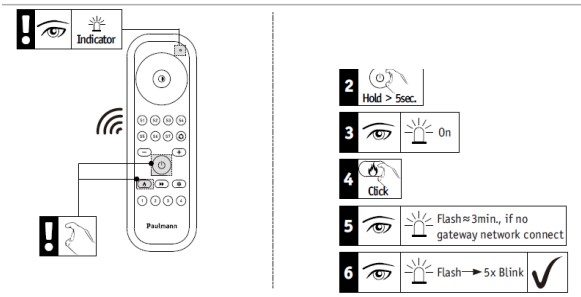
Gent2 remote control (50140) with Paulmann Smik Gateway
To use the Gent 2 remote control (50140) with the Paulmann Smik Gateway, follow these steps:
1. Reset the remote control
2. Press and hold the ‘On/Off’ button on the remote control for at least 5 seconds
3. The remote control’s LED will light up
4. Briefly press the ‘warm white’ button (fire symbol)
5. The LED will start to flash
6. Start the device search in the Zigbee system
7. If the LED on the remote control flashes 5 times, the pairing process was successful
8. If pairing does not work, you may need to reset the remote control
9. Once the remote control has been detected, all devices on the network can then be paired using Touchlink
Please note: Communication will thereafter always take place directly between the remote control and the lamp or light!
Device names in the Smik app
To rename a device in the Smik app, follow these steps: Open the side menu by clicking on the burger icon or by swiping from the left towards the centre. All paired devices are listed under ‘Areas/Devices’ and then in the ‘Lights’ tab. Select the entry you wish to change, click on the current name, edit it, save, and you’re done.
Setting the colours of lights in the Smik app
Colours can be adjusted via the dashboard at area level or for individual devices. Tap either the name of an area or a single device to access the relevant settings page. You can then use drag and drop to move the product icons and adjust the colours according to the devices’ capabilities. An RGBW light can therefore be moved between the colour wheel and the white bar, whilst a Tunable White light is restricted to the white bar.
Creating scenes in the Smik app
To create scenes, please tap the tile for the desired area on the dashboard. You will then be taken to the colour settings page. Once you have configured the devices in those areas with your chosen colours and brightness levels, you can save the settings as a new scene by tapping the ‘+’ icon at the end of the device list. Alternatively, you can use the corresponding function in the ‘Scenes’ tab.
Gent Automatic Colour Change Remote Control (50067)
The automatic colour change is initiated by pressing the ‘P’ button several times. The colour lamps then cycle automatically between red, green and blue.
Transferring the settings from one Gent remote control (50067) to another Gent
It is possible to transfer the products and groups programmed into a Gent remote control (50067) directly to another Gent. This effectively clones the Gent. To do this, place both Gents side by side. Then press and hold the On/Off button for five seconds, first on the sending Gent and then on the receiving Gent.
Upload Gateway logs for fault analysis
Users can upload gateway logs directly to our cloud via the button on the Gateway for troubleshooting: hold the button down for between 5 and 10 seconds. For analysis purposes, the customer must also provide the Gateway’s serial number (located on the underside of the Gateway or on the packaging), as the logs are stored in folders with names that match the serial number.
Pair two 50134 smart Zigbee switches with the same lights
To pair a second Smart Switch (50134) with the same lamps and lights, both switches must be on the same network.
Open the network on the first switch and then connect the second one using the following steps:
1. Press and hold A1 and B1 until the LED lights up
[Image]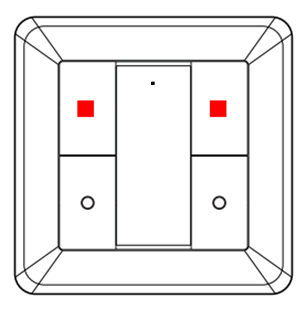
2. Press B1; the LED flashes twice
[Image]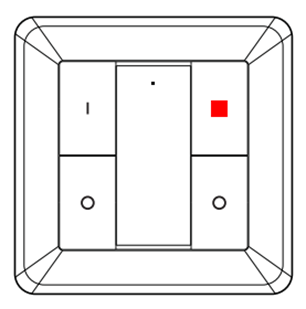
3. Reset using the second switch (press A0 and B0 three times within one second)
[Image]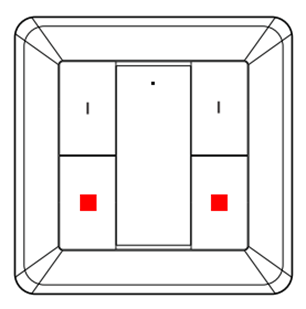
4. The LED on switch 2 confirms the process by flashing 10 times
The second switch can now be programmed to work with all devices that have already been programmed to the first switch using the standard pairing procedure.
Open the network on the first switch and then connect the second one using the following steps:
1. Press and hold A1 and B1 until the LED lights up
[Image]
2. Press B1; the LED flashes twice
[Image]
3. Reset using the second switch (press A0 and B0 three times within one second)
[Image]
4. The LED on switch 2 confirms the process by flashing 10 times
The second switch can now be programmed to work with all devices that have already been programmed to the first switch using the standard pairing procedure.
Loading Azure cloud certificates from the server Smik (50135)
When the Gateway starts up, and then every 10 minutes, it attempts to download Azure cloud certificates from the server. The Azure certificates are a prerequisite for all cloud functions (remote control, Alexa, etc.).
Transfer sensor settings from the Gateway to the sensor
The 50136/50133 sensor is not permanently active; instead, to conserve battery life, it is frequently in sleep mode. Users can select the motion sensitivity and brightness threshold for motion detection in the Smik app. These changes are transmitted when the sensor is active. This occurs in the following situations: - The sensor transmits the current twilight value to the Smik Gateway.- The sensor has detected movement and reports this to the Smik Gateway. - The user presses the ‘Mode’ button on the sensor. New user settings are transmitted to the sensor within 10 minutes at the latest.
Assign accessories to an area in the Smik app
Accessories such as the switch, sensor and remote control are not assigned to any area, as these components cannot be controlled. All integrated accessories can be found and configured via the menu under Areas & Devices > Accessories.
Reset Paulmann Motion Sensor Outdoor 50136
To reset the Paulmann motion sensor outdoor 50136, press the reset button for at least five seconds. If the reset is successful, the LED will flash five times.
Using the Gent 2 remote control (50140) and Smart Switch (50134) together with the same lamps and lights without a Gateway
The Gent 2 remote control (50140) and the Smart Switch (50134) can be used with the same lamps and lights without a Gateway as follows:
1. Reset the Gent 2 to its factory settings[Image] 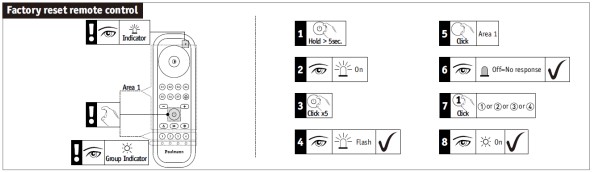 2. Reset Smart Switch to factory settings [Image]
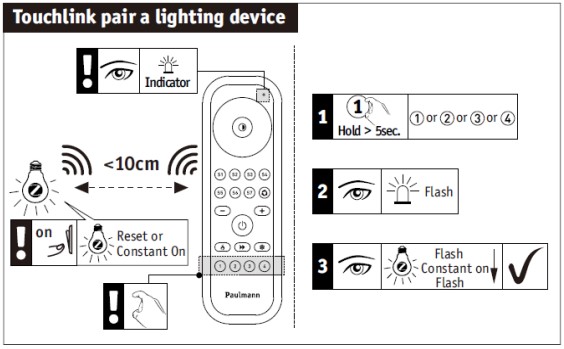
  3. Use the Touchlink function on the remote control to connect to the desired product using one of the four channel buttons [Image]
  4. Open the network settings on the Gent 2 remote control[Image]
  5. Position the Smart Switch within 10 cm of the remote control and switch on connection mode[Image]
  6. Pair Smart Switch with the items that have already been programmed onto the remote control [Image]
2. Reset Smart Switch to factory settings [Image]
3. Use the Touchlink function on the remote control to connect to the desired product using one of the four channel buttons [Image]
4. Open the network settings on the Gent 2 remote control[Image]
5. Position the Smart Switch within 10 cm of the remote control and switch on connection mode[Image]
6. Pair Smart Switch with the items that have already been programmed onto the remote control [Image] Delete user data for the Paulmann Gateway
To delete your user data for the Paulmann smik Gateway, please send an email to app-support@paulmann.de in accordance with the Smik Privacy Policy to delete your smik user account and your personal data. Once your user account has been deleted, remote and voice control will no longer be possible.
Editing entries in the Smik app
Entries in Smik can be edited by swiping from right to left and briefly tapping an entry, as shown in the following examples.
Dashboard menu item:
A short press on an area or a light takes you to the detailed settings for colours, brightness and scenes (for areas). A long press on an area opens the quick selection of scenes. A short press on a scene entry activates the scene. Within the scenes section itself, after swiping on an existing scene entry, you can select ‘Edit’, ‘Copy’ or ‘Delete’.
‘Automation’ menu item:
A created routine can be deleted or copied by swiping on the relevant entry. A short press on a routine entry takes you to individual configuration options, depending on the type.
Menu item ‘Areas – Devices’: A created area, lights and accessories can be deleted by swiping on the relevant entry.
If you tap an area or light entry, you can change the name, icon and assignments for the area and lights. A short tap on an accessory entry takes you to individual configuration options, depending on the product.
Unpair individual items from the Zigbee Remote Control Basic (50141)
To unpair individual devices from the Zigbee Basic remote control (50141), proceed as follows:
1. Switch on the device you wish to unpair so that the lights come on
2. Move the remote control as close as possible to the device
3. Briefly press the ‘On/Off’ and ‘Minus’ buttons three times
Unpair individual items from the Gent Zigbee remote control (50067)
To unpair individual items from the Gent (50067) Zigbee remote control, proceed as follows:
1. Switch on the device you wish to unpair so that the lights come on
2. Move the remote control as close as possible to the device
3. Press the group button containing the actuator you wish to unpair
4. Press the ‘P’ button for 3 seconds
5. The remote control’s LED will flash three times, followed by the lamp or light
The actuator has now been unpair and can no longer be controlled by the remote control.
Unpairing individual items from the Zigbee Gent2 remote control (50140)
To unpair individual items from the Gent 2 Zigbee remote control (50140), proceed as follows:
1. Switch on the device you wish to unpair so that the light comes on
2. Move the remote control as close as possible to the device
3. Press the group button corresponding to the actuator you wish to unpair
4. Press the ‘On/Off’ button for at least 5 seconds
5. When the LED on the remote control lights up, press the double-arrow button (below the ‘On/Off’ button) twice
6. The LED on the remote control will flash.
7. As soon as the device you wish to unpair starts flashing, the connection is disconnected
Dimming lights with the Paulmann Smart Switch (50134)
Pressing and holding the top two buttons on the Smart Switch 50134 increases the brightness for the respective group of lights, whilst pressing and holding the bottom two buttons reduces the brightness.
Setting up Zigbee smart devices
Paulmann lamps and lights enter pairing mode for three minutes from the moment they are switched on, allowing them to be connected to a Gateway, a remote control or another smart home system. If the pairing process does not work, you can reset the device by switching it off and on five times.
Creating scenes and routines for individual devices
It is not currently possible to create scenes and routines for individual devices. At present, scenes and routines can only be created for areas. Consequently, the Paulmann switch cannot currently be linked to individual devices either.
The following option is available: create an area containing the desired individual device, then create a scene in which other devices are switched off or adjusted accordingly.
Pairing Zigbee devices with a Basic Remote control (50141)
To pair Zigbee devices with a Basic Remote Control (50141), proceed as follows:
1. Switch on the device you wish to programme so that the lights come on
2. Move the remote control as close as possible (approx. 10 cm) to the device
3. Press and hold the On/Off button until both the light you wish to programme and the remote control’s status LED start flashing
4. The light will remain lit continuously
5. When the light flashes once more, the programming process is complete
Pairing Zigbee devices with a Gent remote control (50067)
To programme Zigbee devices onto a Gent remote control (50067), proceed as follows:
1. First, switch on the device you wish to programme so that the light comes on.
2. Now move your remote control as close as possible to the device you wish to pair.
3. Press and hold the desired channel button (1, 2 or 3) until both the light and the LED on the remote control start to flash.
4. Please note that during the pairing process (indicated by the lights and the remote control flashing), you must keep the remote control in the same position and not increase the distance.
5. Once the flashing has stopped, you can reposition the components as required.
6. To control the relevant device, simply press the desired channel button briefly and then select the command (On/Off/Colour, etc.).
Important: When pairing, hold the components close together for approx. 30 seconds!
Pairing Zigbee devices with a Gent2 remote control (50140)
To pair Zigbee devices with a Gent 2 remote control (50140), proceed as follows:
1. Switch on the device you wish to pair so that the light comes on
2. Move the remote control as close as possible to the device
3. Press and hold the desired channel button (1, 2, 3 or 4) until both the light you wish to pair and the LED on the remote control start to flash
4. The light will remain lit continuously
5. When the light flashes again, the pairing process is complete
Connecting Zigbee devices to a Paulmann Smart Switch (50134) via Touchlink to connect them
To connect Zigbee devices to the Smart Switch 50134 via Touchlink, ensure that the switch and the devices to be paired are no more than 10 cm apart. A button combination is required to establish the connection.
1. Briefly press one of the two upper buttons to select the group.
2. Immediately afterwards, press both upper buttons simultaneously until the LED lights up. 3. Then, immediately press the lower left button briefly.
Once a connection has been established, the LED will first remain lit for three seconds and then flash for six seconds. During this process, only the Zigbee device with which a connection is to be established should be within range of the switch.
Using two Gent 2 remote controls (item no. 50140) in parallel
To use two Gent 2 remote controls (item no. 50140) in parallel, the following steps are required:
1. Use Touchlink to pair the desired Zigbee devices with a remote control
Open the network by following these steps:
2. Press and hold the On/Off button for 5 seconds until the LED lights up
3. Then press the warm white button straight away; the LED will flash twice
The network is now open for 180 seconds.
Open the network on the additional remote control using steps 2 and 3; place both remote controls next to each other at a minimum distance.
After a short time, the LED on the second remote control will flash briefly to confirm.
You can now also start the pairing process for the devices on the second remote control by pressing one of the channel buttons.
Start Zigbee article after a reset
If the power to a Zigbee product is switched off and then switched on again, it will start up using the last settings (memory function). If a reset is performed or the device is deleted via a Gateway, the light switches on at 100 per cent with a warm white or cool white light colour. The white light colour depends on the chip and the programming: New Telink = cool white
[Image] 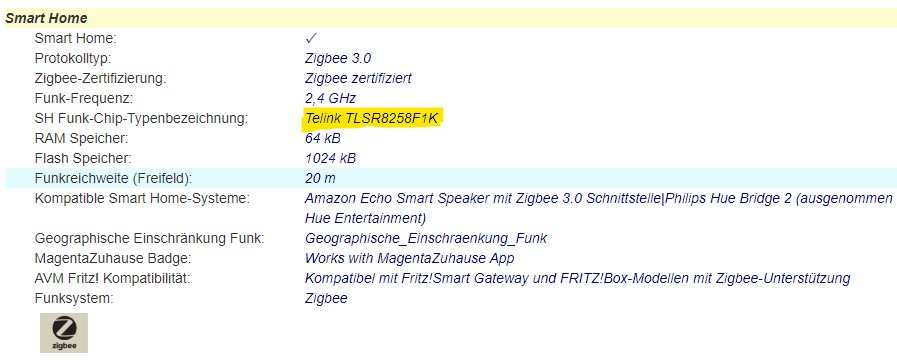 Old NXP = warm white
[Image]
Old NXP = warm white
[Image] 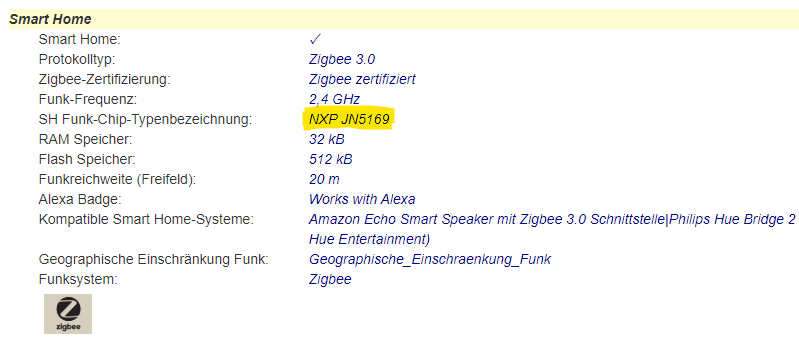
Old NXP = warm white
[Image] Power consumption of the Smart Plug (50131) in standby mode
Smart products are never completely switched off; instead, they remain in standby mode so that they can continue to receive signals. The Paulmann Smart Plug (50131) has a low power consumption of less than 0.3W.
Number of Gent 2 remote controls (item no. 50140) connected in parallel to a Zigbee device
A maximum of 10 Gent 2 (50140) remote controls can be used simultaneously with a single Zigbee product.
Number of Gent remote controls (50067) connected in parallel to a Paulmann Smik Gateway
Any number of Gents (50067) can be programmed. However, due to the nature of the Gent software, there is a cloning effect: - Once the first Gent has been programmed to the Gateway, it can be individually linked to lamps and control them. - Each additional Gent that has been paired with the Gateway automatically clones the linkages of the first Gent.
Number of sensor-based routines using a Paulmann motion sensor
There is currently no limit to the number of routines that can be linked to a sensor.
Number of sensors: 50,136 simultaneously with the Paulmann Smik Gateway 50135
There is nonexistent fixed upper limit on the number of sensors that can be connected to a Gateway at any one time. Rather, it depends in particular on the overall size of the System and, consequently, on the number of other lighting and accessory products in the same System. You can find further information on this on the Gateway’s product page.
Number of Smik user accounts that can be managed using a Smik Gateway (50135)
More smik user accounts can be linked to a single smik Gateway (50135). However, it is not currently possible to use more smik gateways with the same smik user account.
Number of Zigbee devices connected to the Paulmann Gateway Smik (50135)
The Paulmann Gateway currently supports up to 50 Zigbee devices and a further 5 accessories (switches/remote controls).
Number of Zigbee devices: Basic Remote control (50141)
A Paulmann Basic remote control (50141) can be used to control up to 30 devices. All devices can only be controlled together.
Number of Zigbee devices: Gent2 remote control (50140)
With a Paulmann Gent2 remote control (50140), you can control up to 30 devices in four different groups.
Number of Zigbee devices: Gent remote control (50067)
With a Paulmann Gent remote control (50067), you can control up to 20 devices in three different groups.
Number of Zigbee indoor sensors (item no. 50133) connected to the Smik Gateway (item no. 50135)
It is recommended that a maximum of 5 sensors be connected to the Smik Gateway; there is no technical limit.
Number of Zigbee lights connected to the Paulmann Smart Switch (50134) via Touchlink
Each pair of buttons on the Smart Switch can be used to switch on, switch off and perform dimming on up to 15 Zigbee lights, depending on the supported functions.
Firmware updates for the Paulmann Gateway Smik (item no. 50135)
The Smik Gateway (50135) checks the update server initially and then every 10 minutes to see if a new software version is available. If so, the software is downloaded. The update itself then takes place automatically between 3 and 4 am CEST.
During the update, the Gateway automatically reboots, whilst both LEDs flash simultaneously. This process takes up to 4 minutes. Afterwards, the system is operational again and a new firmware version is displayed in the Gateway settings.
The customer is not notified of the update in advance. Following the update, there may also be an app update if, for example, new features have been introduced. In that case, a reference to the new firmware would be provided.
Send log data from the Smik Gateway (50135) to Paulmann
To send the Smik Gateway’s log data to Paulmann for fault analysis, press and hold the button on the side of the housing for 5 seconds.In addition, an email detailing the error encountered should be sent to app-support@paulmann.de (mailto:app-support@paulmann.de).
Pairing Zigbee devices with the Smart Friends Box (50066)
To pair devices with the Smart Friends Box (50066), follow these steps:
1. In the app, tap the ‘Rooms’ area at the bottom centre of the screen.
2. Tap the pencil icon in the top right-hand corner.
3. Select “+ Add another room”.
4. Create a room name and choose a suitable icon. Then save your entry by tapping “Save”.
5. The “+ Add another device” button will appear below the new room.
6. After tapping the button, select the manufacturer of your new devices.
7. Tap the “Search for Zigbee devices” button. The pairing process will now start and take 3 minutes.
8. The devices found will be displayed in this dialogue box. The devices being paired will flash during the process.
9. Devices that are not found should be reset whilst the search is running. To do this, follow our guide on resetting Zigbee devices.
Remove Zigbee lights from the Paulmann Smik app
You can do this very easily in the device menu. Open the side menu by swiping from the left-hand side of your mobile towards the centre. Then select ‘Areas | Devices’ and tap the device you wish to delete. After swiping from right to left on the device you wish to delete, you’ll be presented with a delete option, which you can simply confirm. Your lights will flash when the process is complete. This indicates that it has been removed from the network and can be paired again.
Reset Smart Plug (50131)
To reset the device, press and hold the switch on the Paulmann Smart Plug for five seconds. Once the reset is complete, the LED will flash for about 10 seconds.
Zigbee in-wall actuator 50139 connection
The Zigbee module for installation in switch boxes (50139) can be operated using a two-way switch, a push-button switch, behind a socket, or via direct wiring to the light fitting. Please refer to the operating instructions for the relevant wiring procedures in each case.
Due to the operating voltage of 230V, connection must only be carried out by a qualified electrician.
Setting up the Smart Friends Box (50066)
To set up the Smart Friends Box, follow these steps:
1. Connect the box to the mains using the supplied mains adapter.
2. Wait until the left-hand LED lights up green continuously. The right-hand LED will flash irregularly to indicate its status.
3. Connect the network cable to the internet router and the Smart Friends Box.
4. The middle LED will now light up blue whilst the latest update is being processed. Once it stops flashing, the box is ready for use.
Usage-based Cloud Limiter Smik Gateway (50135) (remote control, voice control, Alexa routines)
There is currently a limit in place that restricts a user’s cloud access to 30,000 accesses per week. These accesses result from the use of remote control and voice control, including integration into Alexa routines. Once this limit is reached, the aforementioned functions will no longer work. The limit is in place to prevent malicious abuse that does not correspond to actual user behaviour. Consequently, the limit is set very high, but is triggered if, for example, a bot or similar is constantly sending voice commands to the System. You can check in the cloud backend whether a user has reached their limit. To do this, please contact our service provider, P3, via the customer service back office. P3 can reset the limiter to 0. Incidentally, the limiter is also legally safeguarded by being mentioned in the accepted terms of use.
The language account cannot be linked to the Smik account
Please ensure that you are logged in under Settings > Cloud > Account and that the switch is activated under Settings > Cloud > Voice and Remote Control. Unless these settings are activated, the digital assistants will not be able to access the Smik Gateway.
Smik app: light bulb icon greyed out
A device icon in the colour settings area is greyed out if a device has been switched off or is not accessible by the Gateway. In the latter case, a red exclamation mark is also displayed next to the relevant device in the device list.
Unable to connect lamps via the Smik app
If your lamps, which have already been connected to the system, are not accessible, please check that they are connected to the mains (the standard light switch must be switched on for this) and ensure that you are within the system’s operating range.
Please contact Paulmann Customer Services if you are still unable to establish a connection.
Create brightness routines with more brightness thresholds
Different threshold values can be set for activating and deactivating brightness routines. As a general rule, it is advisable to set the threshold for deactivation higher than that for activation, in order to account for temporary variations in brightness.
Routines involving sunrise or sunset are not possible
Please check whether you have already set your Gateway location in the Gateway settings. This information is required to use the feature, so that the system can identify the sun positions relevant to you and incorporate them into your routines.
Colour variations in Zigbee RGB products
If Zigbee RGB lamps and lights are controlled by different controllers, such as remote controls and gateways, the colour tone may vary due to slight differences in the parameters. If the LEDs are not from the same batch, or if they are completely different products, a variation can be observed, particularly with mixed colours.
Certain device icons cannot be dragged into the colour wheel
Devices can only be dragged into the relevant colour zones in accordance with the functionality they support. Accordingly, a Tunable White lamp can only be moved within the white slider, but not into the colour wheel.
If you attempt to do so anyway, the colour wheel will be greyed out and the lamp will automatically revert to the white slider. A lamp that is only dimmable or a Smart Plug is displayed as a fixed point on the white slider and cannot be dragged.
New devices, areas or scenes cannot be set up using Alexa or Google Assistant
If new devices, areas or scenes cannot be controlled via Amazon Alexa or Google Assistant, the Paulmann system may not have synchronised automatically with Google or Amazon. In this case, carry out a manual device search:
Alexa:
- App: Devices > + > Add device > Other > Search for devices
- Start via voice command
Google:
- App: + > Set up device > Compatible with devices > Tap Paulmann Action and connect account
- Start via voice command
The figures displayed in the Smik app do not always reflect reality
On the slider used to set the white balance, lamps are represented in relation to their colour capabilities. The slider therefore has none of the following: fixed Kelvin values or end points; the extremes vary for each lamp. However, the colour display on the slider itself is static and presents a white colour spectrum in a clear and illustrative manner (currently 2200–10800K). This can mean that, whilst the actual lamps physically display the same colour value, the icons in the app are positioned offset from one another.
Example: TunW Lamp 1 can be set up to 2700K, whilst TunW Lamp 2 can be set up to 2200K. On the slider, both lamp icons are then positioned on the left at the slider’s maximum setting, but in reality they display different colour values according to their capabilities. If Lamp 2 is to display the same white colour as Lamp 1 in reality, the user must move the icon for Lamp 2 slightly to the right.
Zigbee firmware updates
Firmware updates are designed to optimise your lighting experience. They enable us to keep the system up to date, fix bugs, enhance security and integrate new features.
Updates may be available for the Paulmann Gateway or for Paulmann Zigbee devices connected to the Paulmann Gateway.
Firmware updates for the Smik Gateway System (50135)
Updates to the Gateway software are primarily designed to optimise your lighting experience and ensure system security. We keep the system interfaces up to date, resolve issues or integrate new features in accordance with our terms of use.
The voice control function of the Smik Gateway system (50135) switches on the wrong devices
Please ensure that areas and individual devices have clearly distinct names in both the Smik app and the language service app, as otherwise the wrong devices may be switched on.
Zigbee product not found on the Paulmann Gateway
If a Zigbee device cannot be found by the Gateway, there may be several reasons for this:
- A Zigbee device cannot be part of more than one Zigbee network at the same time. Reset the device in accordance with the manufacturer’s instructions and then start a new device search via the Smik app.
- The distance between the new Zigbee device and the smik Zigbee gateway, or the nearest existing Zigbee device on the smik network, is too great. Despite the mesh network, there may be situations where the radio range is insufficient. Move the device closer to the Smik Zigbee gateway to pair it.
- Another possible cause could be that the Zigbee device has no power. Smart devices require a power supply to pair and, ideally, a continuous power supply to function. Ensure the Zigbee device you are trying to pair is connected to a power source.
Changing the names of areas in the Smik app
To change the name of an area in the Smik app, open the side menu by swiping from the left-hand side of your mobile towards the centre. Then select ‘Areas | Devices’ and tap the area you wish to change. Tap the current name, edit it, confirm by tapping the tick in the top right-hand corner, and you’re done.
Where are the settings for the Paulmann motion sensor outdoor 50136?
Once a Motion Sensor 50136 has been successfully configured on the Smik Gateway, the sensor’s general settings page opens automatically. Here, you can set the brightness threshold for motion detection and the motion sensitivity for motion routines. Routines that utilise sensor data are created in the ‘Automation’ area.
Cloud Backend Storage and User Data
The cloud backend and user data are saved on Microsoft Azure servers in Frankfurt. Usage data is initially saved exclusively on the Gateways and is retrieved as required for analysis purposes. Data is analysed in anonymised form and is not passed on to or sold to any third parties.
Paulmann System Hosting
The Paulmann System is hosted by Microsoft in Frankfurt (Germany).
Hosting the Smik Gateway System
Data such as your user account and the necessary Paulmann cloud services are hosted in Germany.
Zigbee User Guide
Pairing Zigbee devices with the gateway/bridge
1. Start the Zigbee pairing process using the app
2. The pairing process usually takes 30–180 seconds
3. Detected devices are displayed in a dialogue box with the number of devices found; the paired devices will flash during the process
4. Devices that are not detected should be reset during the search process (see Resetting Zigbee devices)
Resetting Zigbee devices
1. Switch on the device
2. Switch the power supply off and on again 5 times in succession at a moderate pace (at intervals of 1–2 seconds)
3. The light will now flash (pulse) for 10 seconds
4. If the confirmation flash is not visible, the process was unsuccessful; please restart the reset, ideally whilst the search is in progress
Pairing the Zigbee wall switch (Item 50134) using Touchlink
The switch and the devices to be paired must not be more than 10 cm apart. A key combination is required for pairing.
1. Briefly press one of the two upper buttons to select the group
2. Immediately afterwards, press the two top buttons simultaneously until the LED lights up
3. Then immediately press the bottom left button briefly.
Once a connection has been established, the LED will initially glow steadily for three seconds and then flash six times. During this process, only the Zigbee device you wish to connect to should be within range of the switch; no other devices should be present.
Pairing the wall switch/Smart Switch 50134 with Amazon Echo*Reset the wall switch if it has already been programmed
1. Open the Amazon Alexa app
2. Go to the ‘Devices’ category and tap the ‘+’ button
3. Select ‘Add device’ and then the ‘Switch’ category
4. Select ‘Other’ as the brand and then start the device search
5. Enter the wall switch’s pairing mode by quickly pressing the lower buttons three times
Once pairing is complete, the Paulmann Zigbee Smart Switch will appear in the Amazon Alexa app under the ‘Switches’ category. You can now connect various devices already connected to the Echo to the switch via Touchlink.
*As at 1 November 2021. We have no influence over software updates carried out by Amazon. We do not guarantee that the Paulmann Smart Switch will work with Amazon Echo devices.
Resetting the Gent remote control (item no. 50067)
1. Press and hold the ‘W’ button in the centre of the coloured ring for 5 seconds
2. The LED changes its flashing pattern
3. Press and hold the ‘On/Off’ button at the top centre for at least 3 seconds
4. The LED changes its flashing pattern
5. To check, press the ‘+’ or ‘-’ button; there should now be none of the confirmation flashes in response to the press. Please note: Any intermittent, irregular flashing is a status indication and is completely normal
Pairing Zigbee devices with the Gent remote control (item no. 50067) using Touchlink
1. Switch on the device you wish to pair so that the light comes on
2. Move the remote control as close as possible to the device
3. Press and hold the desired channel button (1, 2 or 3) until both the light and the LED on the remote control start to flash
4. During the pairing process (indicated by the lights and the remote control flashing), keep the remote control in the same position and do not move it further away
5. Once the flashing has stopped, you can move the components to a different position
6. To switch the light on or off, briefly press the desired channel button and then issue the command (On/Off/Colour, etc.)
Important: When pairing, hold the components close together for approx. 30 seconds!
Unpairing Zigbee devices from the Gent remote control (item no. 50067) from an assigned channel
1. Switch on the device to be unpaired so that the lights come on
2. Move the remote control as close as possible to the device
3. Press the group button for the group containing the actuator you wish to unpair
4. Press the ‘P’ button for 3 seconds
5. The remote control’s LED will flash 3 times, followed by the lamp or light
6. The actuator has now been unpaired and can no longer be controlled via the remote control.
Combining the Gent remote control (item no. 50067) with a gateway/bridge
1. Start the device search in the Zigbee system
2. Press and hold the ‘On/Off’ button on the remote control for three seconds
3. The network opens; the LED on the remote control changes its flashing pattern
4. A device is shown as found in the app (depending on the System)
5. If pairing fails, you may need to reset the remote control
6. Once the remote control has been detected, all devices on the network can then be paired using Touchlink
Please note: Communication will then always take place directly between the remote control and the lamp or light!
Resetting the Gent2 remote control (item no. 50140)
1. First, press and hold the “On/Off” button in the centre for at least five seconds.
2. The status LED will light up
3. Now press the “On/Off” button briefly five times
4. The status LED will flash three times to confirm
Pairing Zigbee devices with the Gent2 remote control (item no. 50140) using Touchlink
1. Switch on the device you wish to pair so that the light is on
2. Move the remote control as close as possible to the device
3. Press and hold the desired channel button (1, 2, 3 or 4) until both the light to be paired and the LED on the remote control flash
4. The light will switch to a steady glow
5. When the light flashes again, the pairing process is complete
Unpairing Zigbee devices from the Gent2 remote control (item no. 50140) from an assigned channel
1. Switch on the device to be unpaired so that the lights are on
2. Move the remote control as close as possible to the device
3. Press the group button containing the actuator to be unpaired
4. Press the ‘On/Off’ button for at least 5 seconds
5. When the remote control’s LED is lit, press the double-arrow button (below the ‘On/Off’ button) twice
6. The remote control’s LED will flash.
7. As soon as the device to be unpaired starts flashing, the connection is disconnected
Connecting the Gent2 remote control (item no. 50140) with a Gateway/bridge
1. Reset the remote control
2. Press and hold the ‘On/Off’ button on the remote control for at least 5 seconds
3. The remote control’s LED lights up
4. Briefly press the ‘warm white’ button (fire symbol)
5. The LED starts to flash
6. Start a device search in the Zigbee system
7. If the LED on the remote control flashes 5 times, the pairing process was successful
8. If pairing fails, you may need to reset the remote control
9. Once the remote control has been found, you can then pair all devices from the network using Touchlink
Please note: Communication will then always take place directly between the remote control and the lamp or light!
Paulmann Lights Compatibility with Homematic IP
Paulmann does not offer any products in its range that are specifically designed for Homematic IP. It is possible to set up our products using the appropriate 230V switch or dimmer actuator. Please note: When performing dimming, ensure that the correct control method is used (leading-edge or trailing-edge)!
What does the exclamation mark in a red circle behind a device or room in the app mean?
An exclamation mark inside a red circle indicates that the app is currently unable to connect to one or all of the devices in the room. However, the app or the Gateway will continue to attempt to establish this connection. A dynamic circle icon appears whilst the app is attempting to connect.
Red exclamation mark in the Paulmann app
A red exclamation mark appears next to a device if it is unreachable. This may be because the device has been physically switched off or is out of range of the control.
What should you do if the switch for the terms of use is not visible when installing the Paulmann app?
If the font size on your smartphone is set too large, the switch for the terms of use may not be visible. To change this – for example, on a Samsung device – please follow this path: Settings/Accessibility/Improve Visibility/Font Size and Style.
Adjustment options within a room or an area
You can customise your rooms and areas. To do this, open the relevant room directly from the home screen or via the side menu. You’ll see the name of the room at the top, with the on/off switch for the entire room to the right of it.
Use the top slider to control the overall dimming level for the entire room. The colour wheel below is used to select a colour. Here, you can either position your lamps individually or group several lights together using drag and drop and select a uniform colour.
The slider below that is used to select the shade of white. Further down, all the lights in the room are listed. There, you can switch the lights on and off individually and adjust their brightness as you wish.
Are standard scenes supported by all types of smart lamps? Why does a lamp switch off when it is activated?
Scenes are only created by lights that are capable of rendering the scene correctly. To ensure the best possible atmospheric effect, lights that cannot reproduce the scene switch off automatically; for example, 2700K dimmable lamps switch off if the ‘Wake Up’ standard scene is activated.
How can the colour of all the lights in a room or area be controlled uniformly?
To control the colour of a room or area consistently, simply click on the room or area where you want to change the colour or white balance. Your lights will be displayed individually on the colour wheel or on the slider below it, which you can use to adjust the white balance.
To set a uniform colour or a specific white tone for the entire room, simply drag and drop the light icons on top of one another. All the lights in the room are now contained within a single icon and can be positioned as desired on the colour wheel or on the white balance slider.
Enabling Dark Mode in the Paulmann apps
You can activate Dark Mode via your smartphone’s settings. The Paulmann Smik app will adjust automatically.
Deleting a scene in the Smik app
You can easily delete a scene in the Smik app via the scenes menu. After swiping from right to left on the scene you wish to delete, you’ll be presented with the delete option, which you can simply confirm.
How can you assign a new icon to devices?
To assign a new icon to a device, go to the side menu, select ‘Areas – Devices’ and then, in the ‘Lights’ tab, select the entry you wish to change, click on the current icon, select a new one, save, and you’re done.
Assigning a new symbol or icon to an area in the Smik app
To assign a new area icon to an area, navigate to the Areas menu. Open the side menu by clicking on the burger icon or swiping from the left-hand side of your mobile towards the centre. Then select Areas – Devices > Areas and tap the area you wish to customise.
Tap the current icon, select a new one, save, and you’re done.
Data security
The app is a purely local application. Paulmann has no access to the installed app and collects none of the data.
Deleting devices in the app
You can easily delete devices from the device menu. Open the side menu. Then select ‘Areas – Devices’ and then ‘Lights’. Swipe from right to left on the device you wish to delete, and you’ll be presented with the delete option, which you can simply confirm.
Creating groups in the Smik app
On the colour settings page, you can create groups by simply dragging and dropping devices onto one another. You can then move the group as a whole and adjust the colours.
Compatibility of Paulmann products with smart home matter
Paulmann is convinced of the importance of a high degree of interoperability between smart home devices and IoT platforms, transcending manufacturer and system boundaries. That is why we have long relied on highly compatible and widely used Zigbee 3.0 lighting solutions, whilst also exploring the new Matter application protocol.
Over the coming years, depending on the area of application, Matter will develop into a link between already established wireless standards such as Zigbee 3.0. Paulmann is continuously assessing the potential introduction of Matter into the Paulmann smart portfolio, taking into account market conditions and customer benefits. We currently consider ourselves ideally positioned for the smart future and to meet our customers’ desired application scenarios.
Creating switch groups in the app
On the colour settings page, you can create groups by simply dragging and dropping devices onto one another. You can then move this group as a whole and adjust the colours.
Kontaktiere uns:


